Working across many projects
Silo starts as a single-project agent desktop and grows into a place where a dozen projects stay open, each with its own agents, editors, and background services. Nothing on this page is a separate mode — it's the same app, used at a larger scale. This is the setup for when you're juggling several codebases at once and want to stop rebuilding context every time you switch.
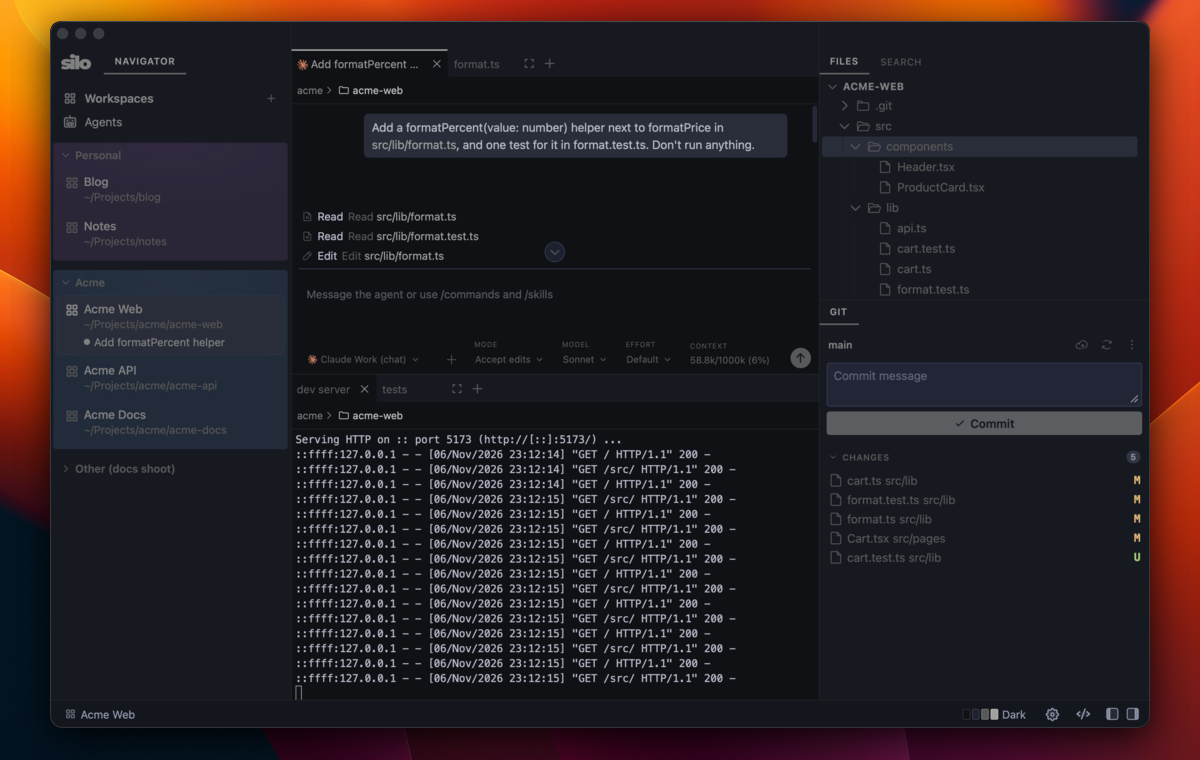
The shape of it
- One workspace per repo (or per repo pair — a multi-folder workspace for a service and its client).
- Workspaces grouped by project or client, so a dozen rows read as three or four blocks.
- One or more chats per workspace, each owning a task.
- Terminals for things that keep running: dev servers, watchers, log tails, a test loop.
- The editor and docs panel open beside the chat, so you can read what the agent is changing without leaving the conversation.
Every piece of this is kept alive when you switch away. The Navigator tells you when something needs you.
Group your workspaces
Click + next to Workspaces and choose New Group… — a name and a color. Then right-click a workspace → Move to Group, or drag it in. The color tints the group's rows, so a client's four repos read as one block. Collapse a group you're not touching today; everything in it keeps running.
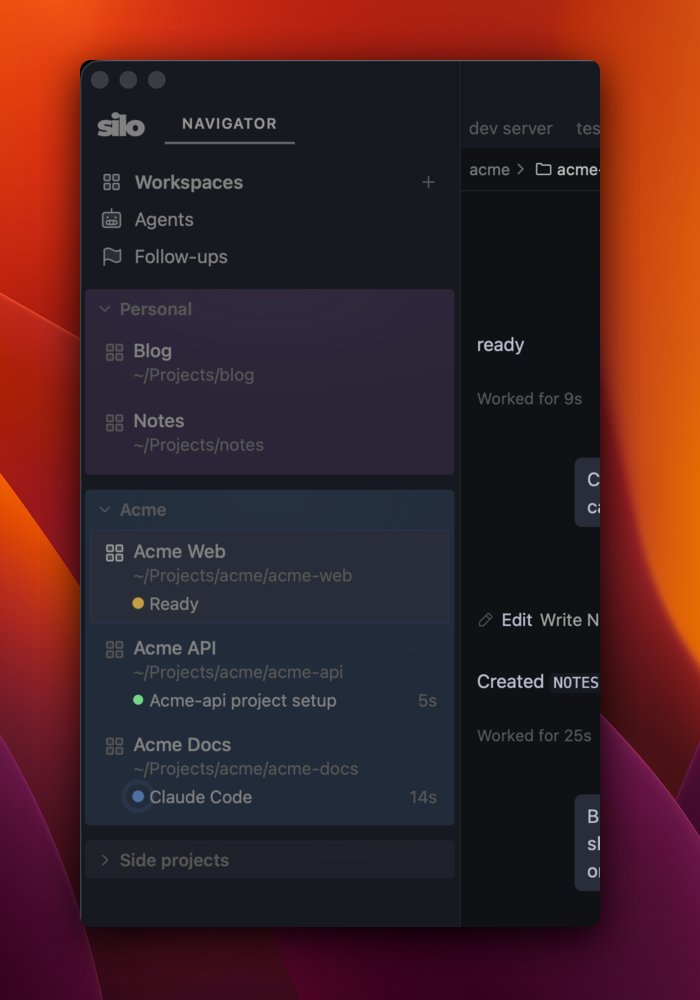
Groups can be closed and reopened as a unit (Close Group, then pick the group from the + menu's Saved section), which is a tidy way to park a client's projects for a week and bring them all back at once.
Run several chats, and let them run
Open a Chat panel per task rather than per project: a feature in one, a bug hunt in another, a docs pass in a third. Each conversation keeps its own context, so none of them drifts. Split the center so the one you're reading sits beside the file it's editing.
Then switch away. A chat keeps working in a background workspace exactly as it does in the foreground; when it finishes or needs an answer, three things tell you:
- the workspace row in the Navigator — each running session is listed under its workspace, with a dot that changes state;
- the tab, which shows the same state when you're in that workspace;
- a sound, if you turn one on in Settings → Agents → Behavior (separate sounds for "finished" and "waiting for you").
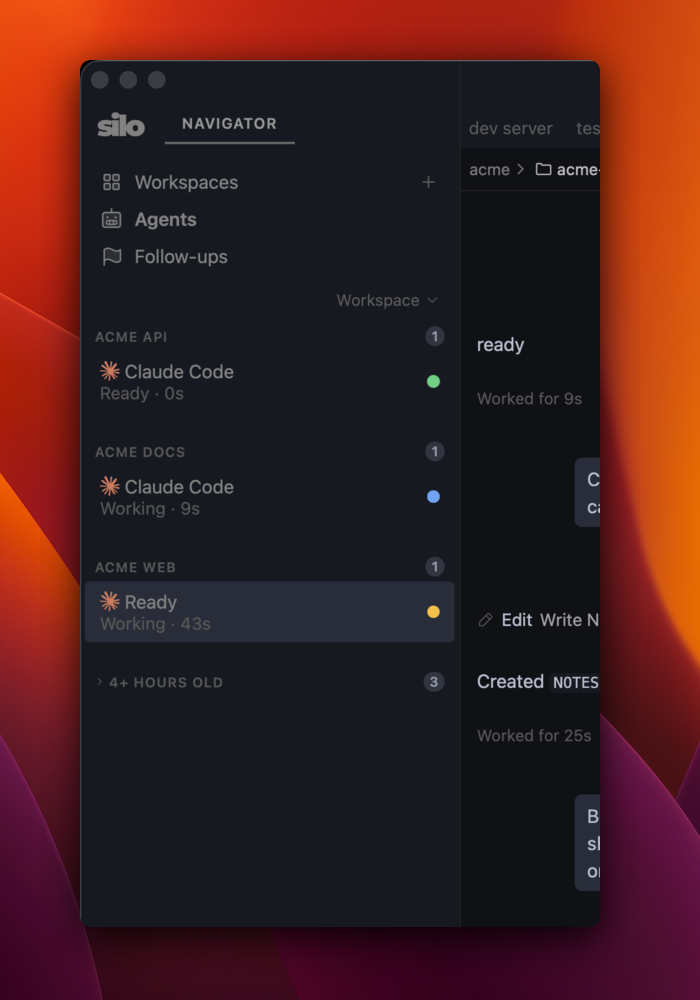
The Agents view in the Navigator is the triage screen for all of this: every session across every workspace, grouped by Working, Ready (blocked on a permission or a question), and Idle. Click a row to jump straight to that chat. Sessions idle for more than a few hours fold away under a cutoff you control, so the list stays about today's work.
Keep services running in terminals
A terminal in Silo is a persistent login shell. Start the dev server in one, the test watcher in another, and they keep running while you're in another workspace — and come back, scrollback included, after you restart Silo. Right-click the tab → Rename… and call them dev, tests, logs so the tab bar reads as a dashboard.
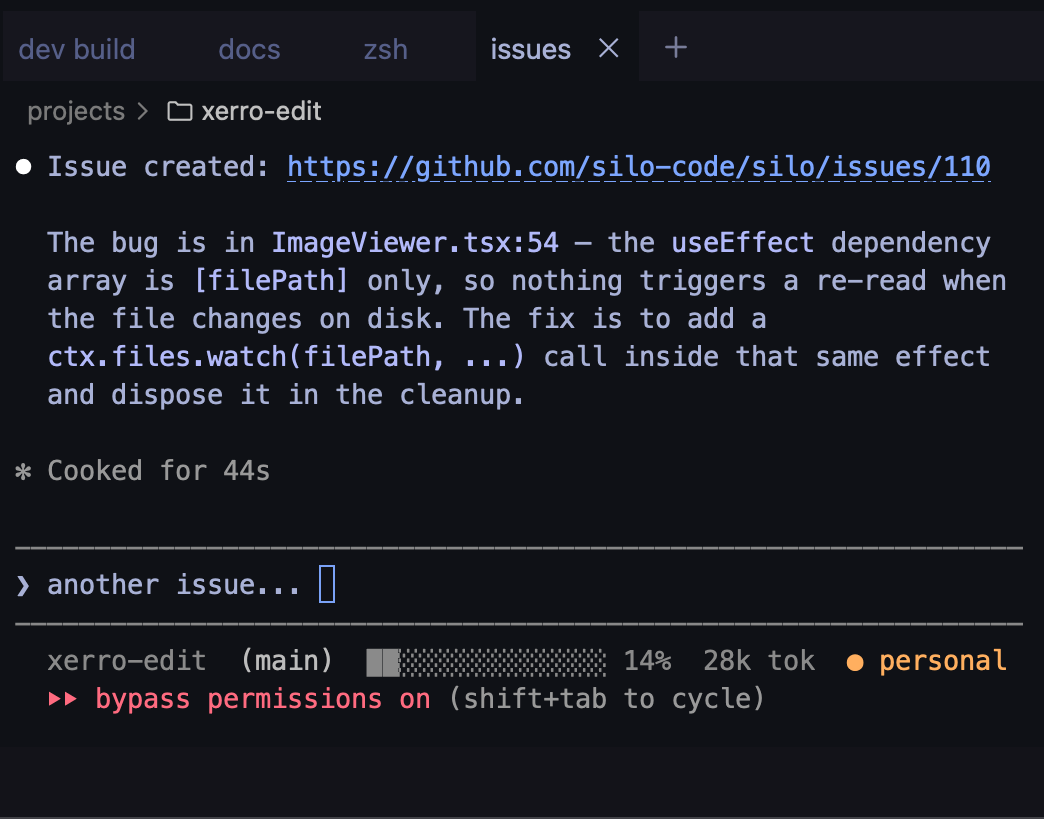
A chat can use those services too: ask Claude to "check the dev server output" and it will run the commands it needs in its own shell, not in yours.
Put the docs next to the code
Markdown files open as a rendered preview in the editor area, so a design doc or a runbook can sit in a split beside the chat that's implementing it. The Documents side panel (an extension from the registry) adds a dedicated docs browser to the right column if you want it always visible.
Switch fast
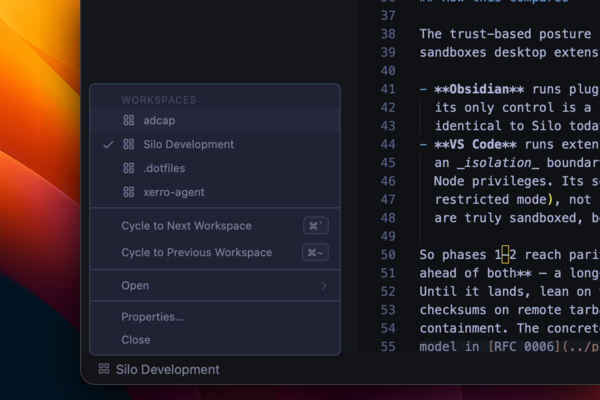
- ⌘
</kbd> and <kbd>⌘⇧cycle through open workspaces; hold the modifier to see the switcher. - Click the workspace name in the status bar for a list.
- From a terminal anywhere,
silo ~/code/that-repofocuses that workspace (or opens it). Withsilo agent run --ws <folder>you can start an agent profile in a workspace from a script. See thesilocommand.
Parallel work in one repo: worktrees
When two agents should work on the same repo without stepping on each other, use a git worktree per task. The Git panel's ⋯ → Manage worktrees… creates one on a branch, opens it alongside the main checkout as an extra folder in the same workspace, and removes it (keeping the branch) when you're done. Each worktree gets its own Git view and its own chats can be pointed at it.
Close what you're done with
A finished project doesn't need to stay in the list. Close it (right-click → Close) and it disappears from the Navigator while keeping its layout, editors, and chats, with its terminals still running in the background; reopen it weeks later from the + menu's Saved section and pick up where you left off. Delete only when you really don't want it back — the folder on disk is never touched either way.
What this costs
Each live terminal is its own small process, and each chat is a Claude process. Idle, they use almost nothing; the UI is one process no matter how many workspaces are open. If Activity Monitor surprises you, Silo's process model explains what you're seeing.
See also
- Workspaces — groups, properties, closing and reopening
- Chat with Claude Code — the Chat panel in depth
- Terminal agents — agents in plain terminals
- Keyboard shortcuts