Chat with Claude Code
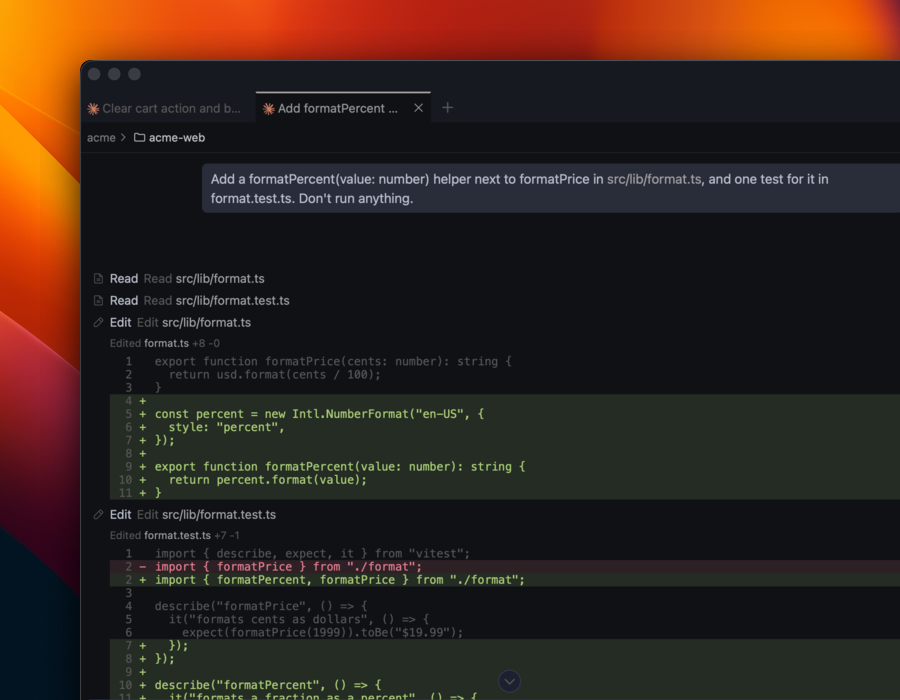
The Chat panel is where most of the work happens in Silo. It runs Claude Code as a native conversation inside the app: you type, Claude reads and edits your files, runs commands, and asks when it needs a decision — and every step is rendered as part of Silo's UI instead of scrolling past as terminal text.
Claude first
The Chat panel speaks the open Agent Client Protocol and also connects to Codex, Cursor Agent, Copilot CLI, OpenCode, and pi. Today it works best with Claude Code — plans, questions, the context meter, and background delegation all light up there — so this guide is written for Claude. What each other agent supports is in the compatibility table.
Before you start
- Install Claude Code and run
claudeonce in any terminal to sign in. - Make sure
npxworks in your shell — Silo starts Claude through a small adapter it fetches withnpxon first use, pinned to a version Silo has tested. Nothing else to install.
Set up a Claude profile
An agent profile is a saved way to start an agent: a label, which agent, and how Silo should talk to it. You make one per agent (or per account — see below), and it then appears everywhere you can start an agent.
Open Settings → Agents (⌘,, then Agents). Under the profile list, Found on this machine lists each agent Silo found installed with a button per mode it supports. Click Chat next to Claude Code and the profile is created.
To make one by hand, click Add an agent profile…:
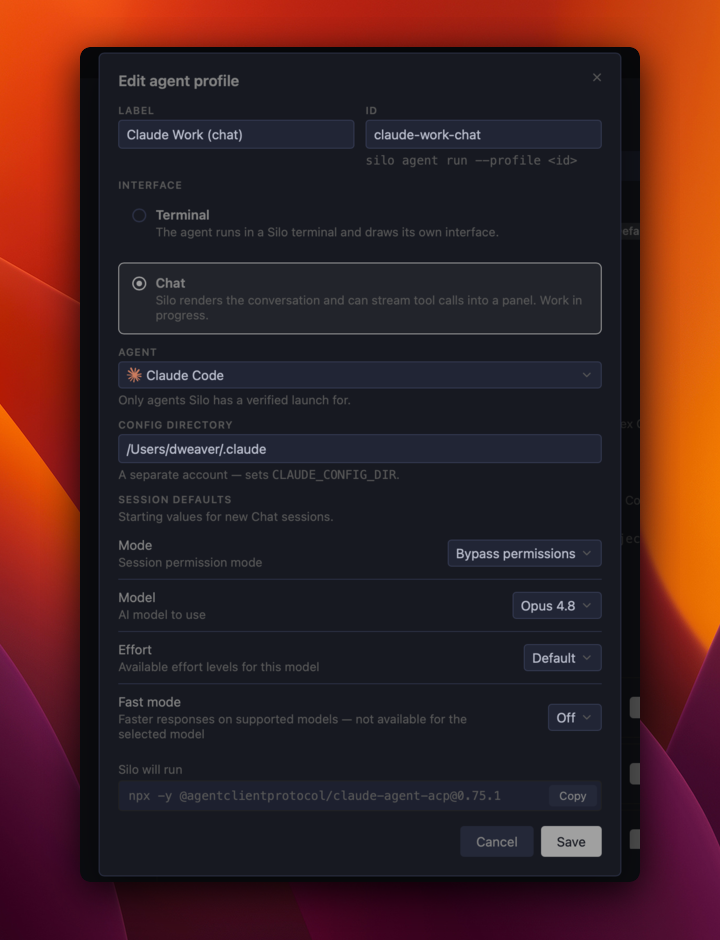
- Interface — pick Chat. (Terminal runs the agent's own CLI in a Silo terminal instead; see Terminal agents.)
- Agent — Claude Code. Silo fills in the launch for you; there is no command to type.
- Config directory — optional. Point a second profile at a different
CLAUDE_CONFIG_DIRto keep a work account and a personal account side by side, each with its own login and settings. - Session defaults — the starting Mode (permission level), Model, and Effort for new chats from this profile. Silo reads the choices from Claude itself, so the list is always current, and you can change any of them at any time from the composer.
Mark the profile you use most as default (right-click → Set as default). The default is what ⌘⌥I and the New Agent button start.
Start a chat
Any of these opens a Chat panel in the current workspace:
- The + in the center tab bar — profiles are listed at the bottom of the menu.
- ⌘⌥I for the default profile, or the New Agent action on an empty workspace.
- A shortcut of your own — every profile has a New Agent: … command you can bind on Settings → Keyboard Shortcuts.
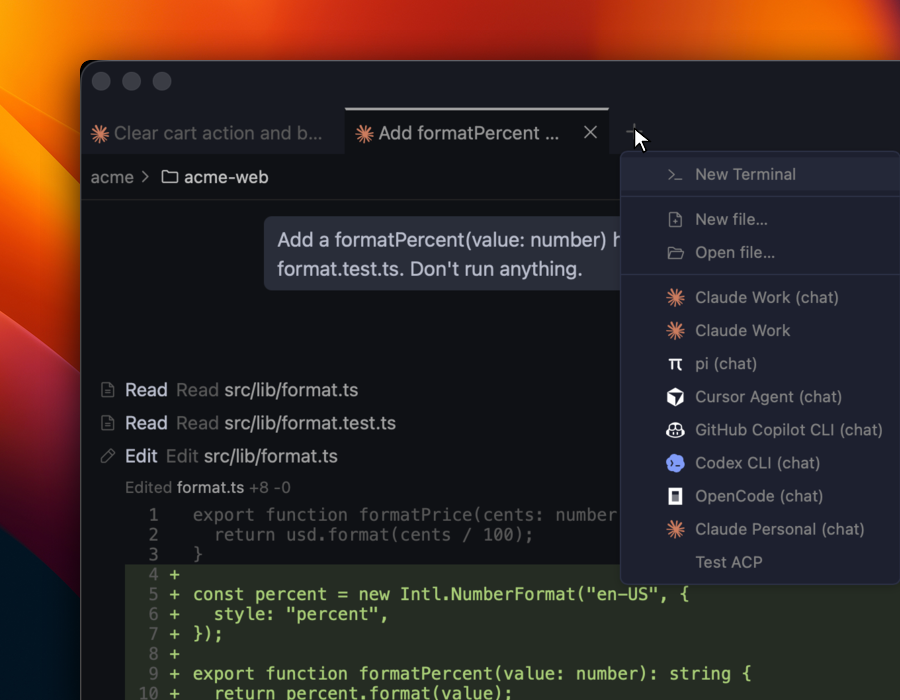
The panel is an ordinary tab: drag it to split the center, put it beside an editor, or open several. Its title starts as the profile name and becomes a short summary of the conversation once Claude has something to summarize. The strip above the transcript shows the folder the session is working in; in a multi-folder workspace, Silo asks which one when the chat opens.
Talk to Claude
Type in the composer and press Enter to send; Shift+Enter adds a line. The field accepts input as soon as the panel opens, so you can draft while Claude is still starting up — Send arms when it's live. A draft you haven't sent survives a restart.
Slash commands and skills. Type / at the start of the field for a palette of everything Claude offers — its own commands, your skills, and two that Silo adds: /clear and /resume (see Sessions). Pick an entry with ↑/↓ and Tab or Enter.
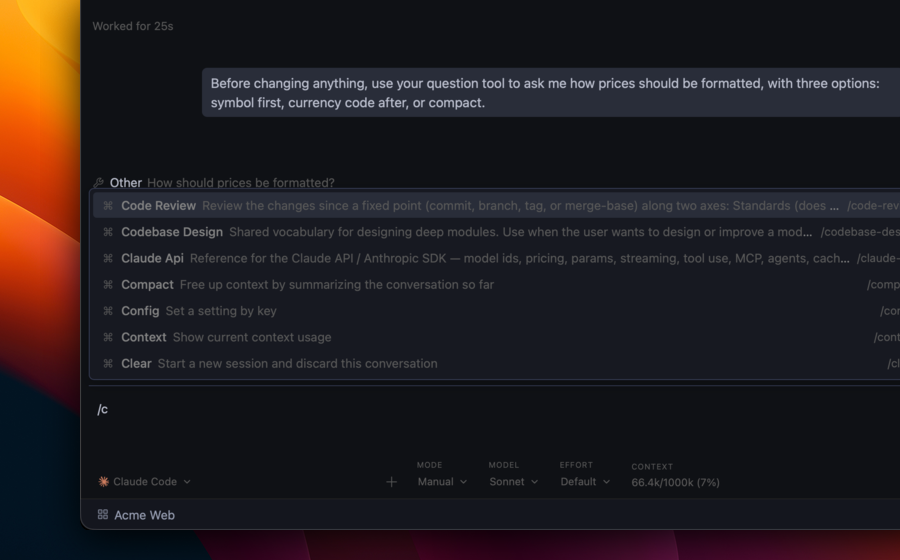
Attach files. Click + (Attach a file), paste a file or screenshot from your clipboard, or hold Shift while dragging a file from the Files panel into the chat. Attachments show as chips above the field and go with the next message. (A plain drag without Shift opens the file in an editor, the same as anywhere else in Silo.)
Stop. While Claude is working, Send becomes Stop. Click it to end the turn; what it already did stays.
The control row
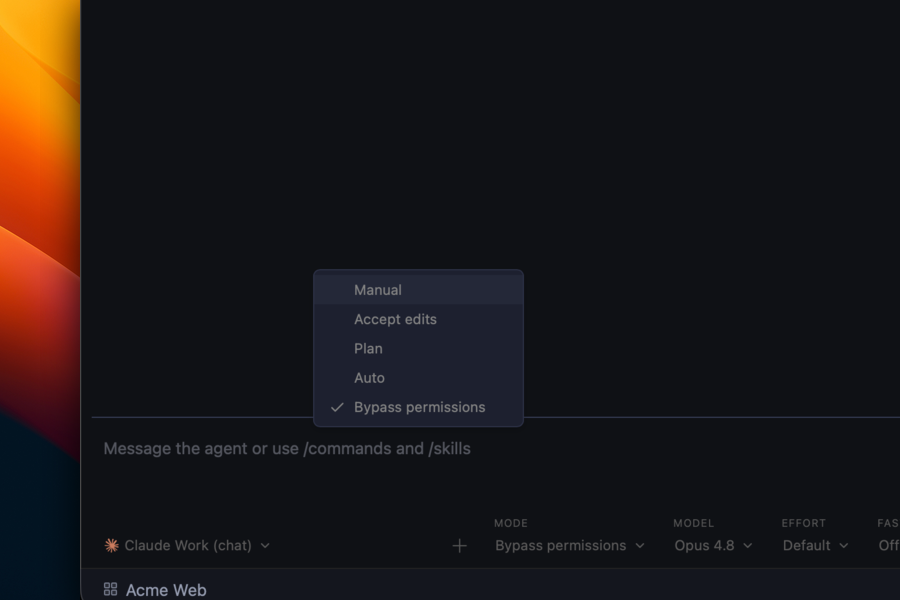
The row under the composer is Claude's live settings for this session.
| Control | What it does |
|---|---|
| Profile pill | Which agent profile this panel runs. Switching tears down the session and starts a new one with the other profile — Silo confirms first if there's a conversation to lose. |
| Mode | Claude's permission mode: Manual asks before every edit and command, Accept edits allows file changes but asks before commands, Plan makes Claude propose before acting, Auto lets Claude decide what's safe, Bypass permissions never asks. |
| Model | Which Claude model answers — the same list as the CLI's /model. Change it mid-conversation; the next turn uses the new one. |
| Effort | How hard Claude thinks — the same levels as the CLI. |
| Context | How full the conversation is, as used/limit (percent). When it climbs, it's time to /clear or start a new chat. |
Which controls appear comes from the agent: Silo shows whatever the connected agent reports. When the panel is narrow the row condenses, and at its narrowest collapses into a single status line that opens the same choices in a menu.
Reading the transcript
Each thing Claude does is a row you can expand:
- Read / Search / Shell / Edit rows name the tool and what it touched. Consecutive calls group together so a long investigation stays compact; a failed call breaks the group so you notice it.
- Edits show an inline diff. Click the file path to open the file in an editor tab.
- Shell rows show the command; expand to see its output.
- Thinking shows as a quieter aside between the rows.
- Code blocks have a gutter with wrap and copy; paths and URLs in prose are clickable.
- Delegated work — when Claude hands a task to a sub-agent — shows inline under the row that dispatched it.
Hover your own messages for a timestamp and a copy button. Once a conversation has a few prompts, a thin Prompt Rail appears along the right edge: one dash per prompt, hover to preview, click to jump back.
If you've scrolled up while Claude is still writing, a Jump to latest button appears; the transcript doesn't yank you down on its own.
Permissions, plans, and questions
Permission requests. In Manual mode, Claude asks before it edits a file or runs a command. The request appears in the transcript with the exact options Claude offers — typically allow once, allow for the rest of the session, or reject. Nothing happens until you answer. Silo can play a sound when a chat is waiting on you (Settings → Agents → Behavior), and the Agents view shows which sessions are blocked.
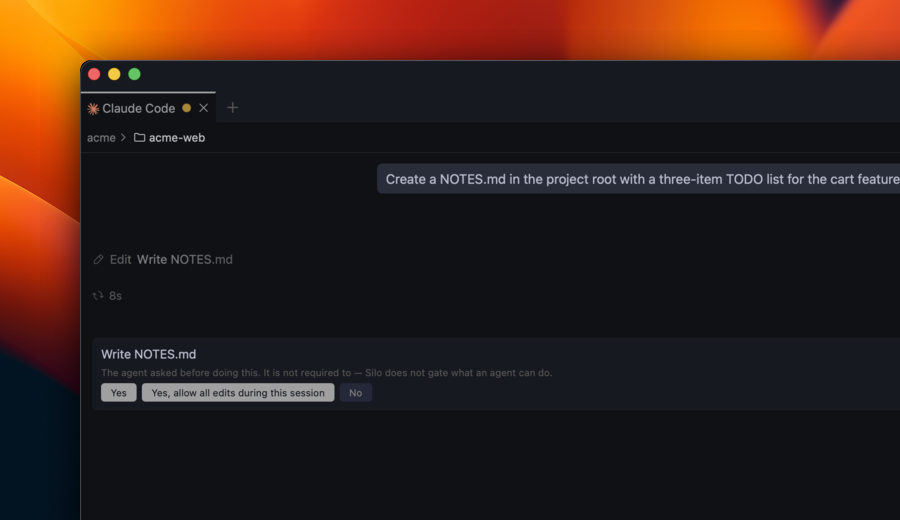
Plans. In Plan mode Claude writes a plan before touching anything and then asks to leave plan mode. Approve it and the Mode control follows along to whatever permission level you picked — so the composer always reflects what Claude will actually do next.
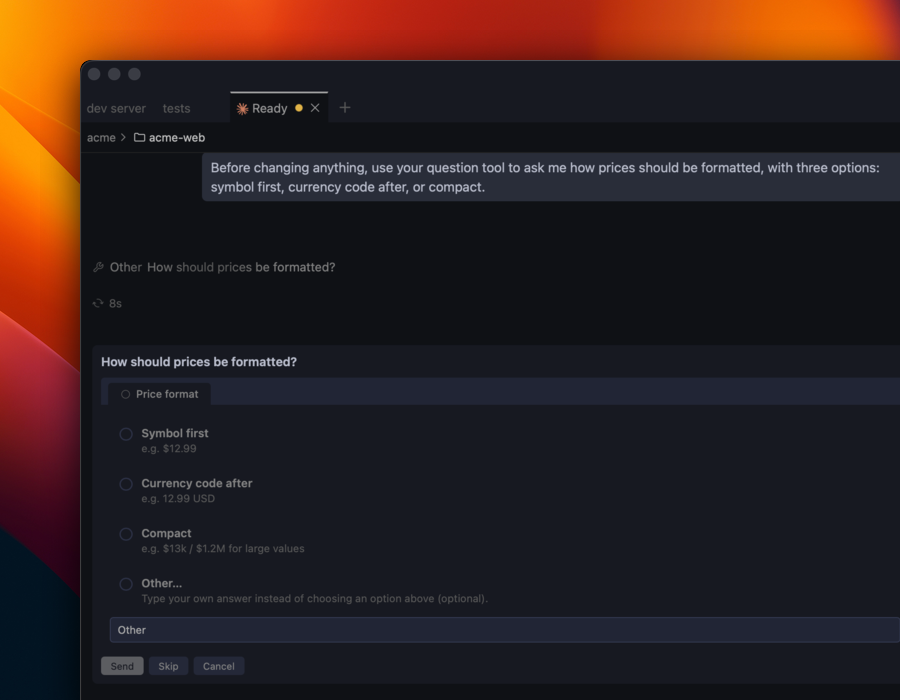
Questions. When Claude needs you to choose rather than just approve, it asks a real question with options. Pick one, pick several, or type your own answer in the Other box — typing there wins over anything you ticked. Send answers, Skip lets Claude carry on without an answer, and Cancel stops what it was doing. A question you haven't answered is still there after a reload.
Sessions
A Chat panel is one conversation with one Claude process. Some things worth knowing about its lifecycle:
- It keeps running when you look away. Switch to another tab or another workspace and Claude keeps working; the workspace row in the Navigator and the tab show when it finishes or needs you.
- It comes back after a restart. Quit Silo, reopen it, and every Chat panel reopens with its transcript and resumes the same Claude session, so you can keep talking. If Claude can't resume one, the panel says so and offers Continue in a new session, which carries the transcript forward.
/clearstarts over. It ends the session and discards the transcript — a clean context, not a shortcut for Claude's own/clear. Silo confirms first (you can turn that off on Settings → Agents → Chat)./resumepicks up an older one. It lists the sessions Claude has in this folder, including ones you started from the terminal, and reopens the one you choose in this panel.- Closing the tab ends the session. Silo warns you if Claude is in the middle of something.
Several chats at once
There is no limit on Chat panels. The patterns people settle into:
- One chat per task. A refactor in one tab, a bug investigation in another. Each has its own context, so neither pollutes the other.
- Chat beside the code. Split the center: chat on the left, the file Claude is editing on the right. Click a path in the transcript and it opens in the editor group next to it.
- Chat per workspace. Every workspace keeps its own chats alive. Ask for something, switch projects, come back when the Navigator shows it's done.
To see every running agent across all workspaces, open the Agents view in the Navigator — it groups sessions by Working, Ready (waiting on you), and Idle, and a click takes you straight to the panel. Working across many projects covers this setup in depth.
Other agents
Everything above works the same way for Codex, Cursor Agent, Copilot CLI, OpenCode, and pi, as far as each agent supports it. Codex and Cursor get the same transcript, diffs, and resume; the differences are in what the agent sends — Claude is the only one that asks questions today, for instance, and only some report context usage. The compatibility table is the authoritative list. Grok and OMP have no Chat path yet; run them in a terminal and Silo tracks them there.
Settings
Settings → Agents collects everything:
| Tab | What's there |
|---|---|
| Profiles | Your agent profiles, the default, and Found on this machine. |
| Behavior | Sounds when an agent finishes or needs an answer; what clears the "finished" indicator. |
| Navigator | How the Agents view groups and ages sessions. |
| Display | Agent icons on tabs and rows; status glyphs in terminal tab titles. |
| Chat | Whether /clear asks for confirmation. |
| Sessions | Session hooks for terminal agents — not needed for Chat, which resumes on its own. |
See also
- Terminal agents — running an agent's own CLI in a Silo terminal, exact resume, and the per-agent notes.
- Working across many projects — groups, the Agents view, background services, and switching.
- Keyboard shortcuts