Workspaces
A workspace is a named project rooted at one or more folders. Silo runs all your open workspaces simultaneously — each keeps its terminals, editors, and layout alive in the background. Switching is instant, with no reload.
When a workspace contains multiple folders, Silo adapts its UI automatically: the file explorer shows each root separately, the git panel surfaces activity across all roots, and other views follow the same multi-root convention.
Your layout, remembered
Every workspace remembers its exact arrangement — which editors are open, how terminals are split, and which tab is active — and restores it faithfully when you switch back or restart Silo.
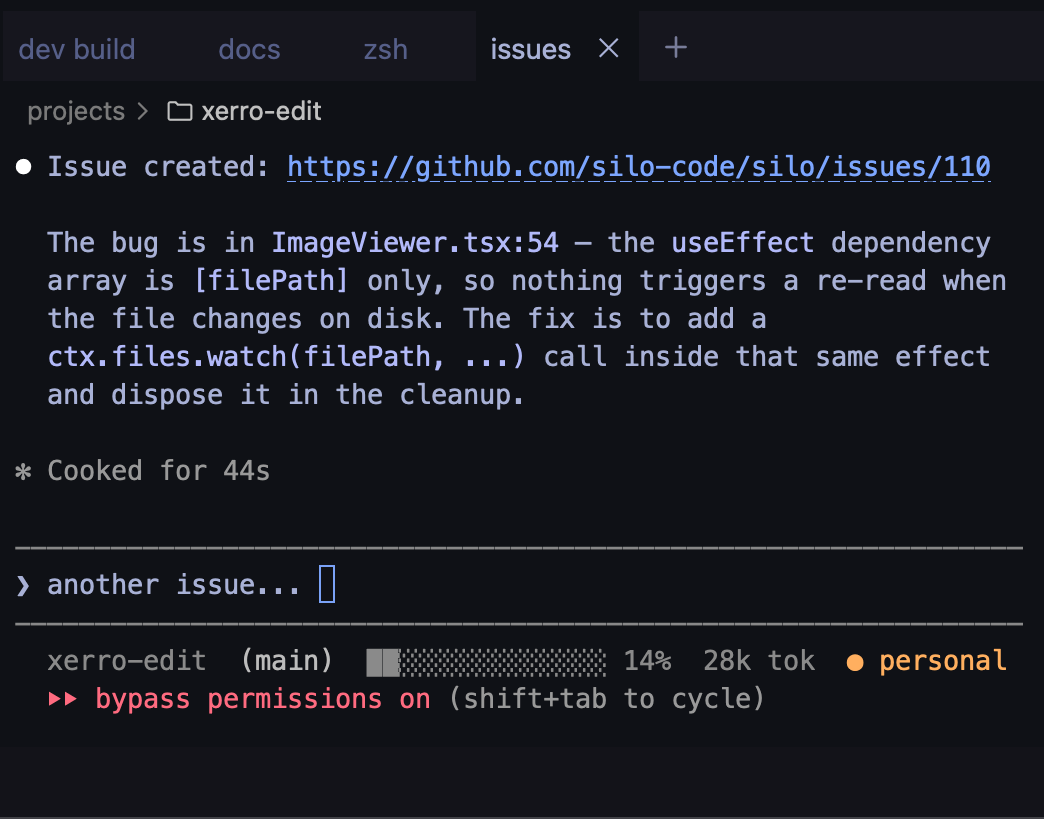
That persistence pays off when you treat terminal tabs as dedicated slots for specific jobs. Give one tab to your dev build, another to docs, a third to a Claude session for filing issues — and they're all waiting exactly where you left them, no matter how many other workspaces you visited in between.
Opening a workspace
Click the + button in the Navigator's view header to open a folder picker. Select a folder (or multiple folders for a multi-root workspace) and Silo creates a new workspace and activates it. If a workspace for that folder already exists, Silo brings it to the foreground instead.
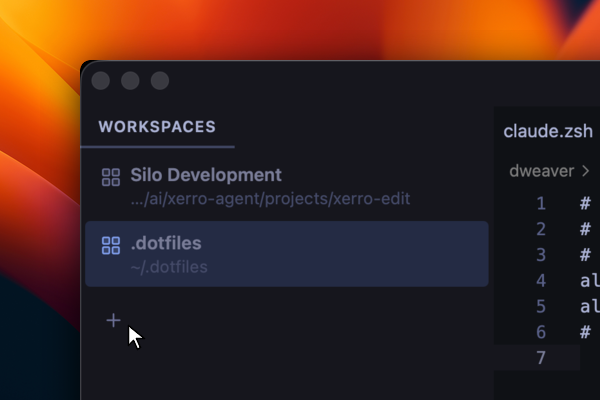
You can also open a workspace from the terminal using the silo command:
silo .                  # current directory
silo ~/code/my-project  # any folder
Switching between workspaces
Status bar — the active workspace name sits at the bottom-left of the window. Click it to open a menu listing every open workspace; click any entry to switch immediately.
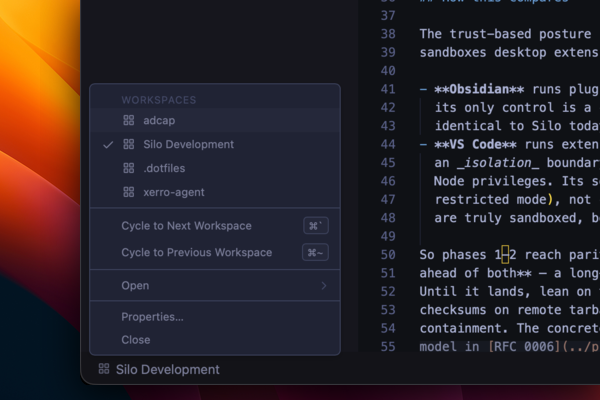
Keyboard — press ⌘` to cycle forward through open workspaces, or ⌘~ to cycle backward. A small popup floats above the status bar while the modifier is held — release to land on the highlighted workspace.
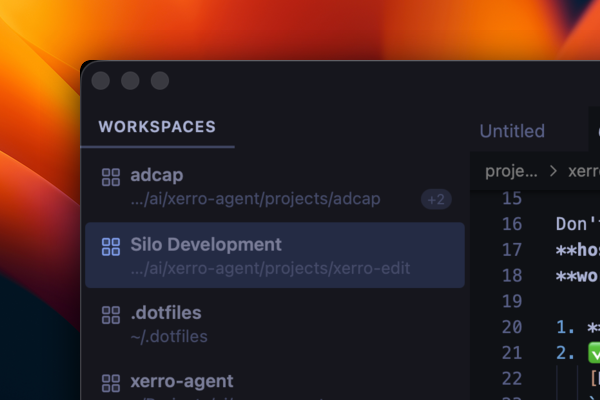
Navigator — open the Navigator in the left dock; its Workspaces view lists every open workspace. Click a row or press Enter on the focused row to activate it.
Closing and reopening
Close hides a workspace without losing its state. Closed workspaces appear in the Navigator's + menu and in the Open submenu of the status bar menu. Reopen one to bring it back exactly as you left it — terminals, editors, and all.
Delete removes a workspace permanently. Its terminals end and any unsaved editors are closed.